This is a good question since it can be difficult to maintain version control across multiple PCs.
You’ve tried comparing several files, but the key one is the .crf file. However, as you’ve noticed, simply doing a standard file comparison or CRC of the .crf files won’t work because every time the file is saved, the internal TIMESTAMP changes, which alters the file’s CRC even if the logic hasn’t changed.
Instead, use the current version of TermCL, a command-line utility that installs automatically with PAC Project. Typically, it is located here:
C:\Program Files (x86)\Opto22\PAC Project 10.6
Here is how you can use it to get a reliable CRC. Open a standard Windows Command Prompt (DOS prompt).
Navigate to your PAC Project installation directory. Typically:
C:\Program Files (x86)\Opto22\PAC Project 10.6
Note: Your version number folder may vary slightly. However, versions of TermCL prior to R10.6b will not contain the -gencrc option.
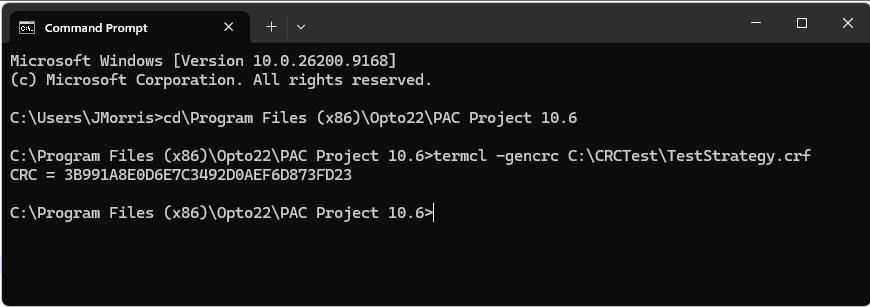
Run the following command:
TermCL -gencrc
(Replace with the full path and filename of your .crf file). For example:
When you run the -gencrc command, TermCL builds a CRC based only on the code portion of the file. It omits the lines beginning with DATESTAMP, TIMESTAMP, and CRCSTAMP. This ensures that innocuous saves don’t change the CRC. Only logic changes will.
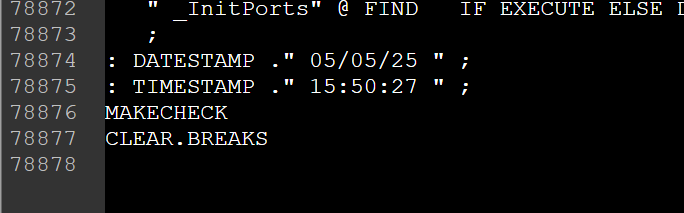
Because the .crf is just a standard text file, you can open it in any text editor and scroll to the very bottom to see the current CRC on the CRCSTAMP line. Here are the key lines towards the end of my .crf file:
: DATESTAMP ." 08/26/26 " ;
: TIMESTAMP ." 13:11:33 " ;
: CRCSTAMP ." 3B991A8E0D6E7C3492D0AEF6D873FD23 " ;
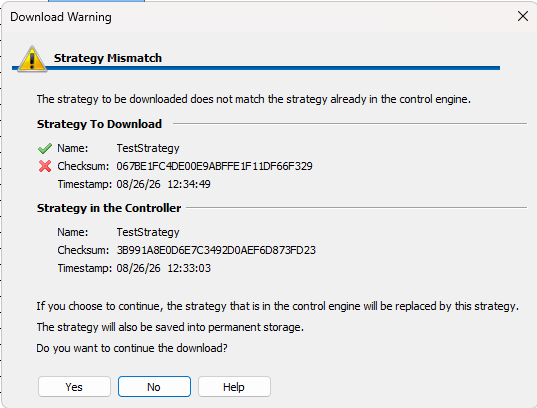
When you enter Debug mode, PAC Control compares the CRC in your local .crf file to the CRC in the controller. If they don’t match, you get the Download Warning dialog, which explicitly displays both CRCs side-by-side:
Please note that the CRC is only generated upon compilation (whether you trigger it manually or PAC Control triggers it automatically before a download). It is not generated just by saving the strategy or performing an online download.
So, it is possible for a strategy file to have uncompiled/online changes that aren’t yet reflected in the CRCSTAMP. Always make sure the strategy has been compiled before comparing the CRCs.
In the case of online changes, the file CRC is not updated until Online mode is exited, Configure mode is entered, and then transitioned to Debug mode to perform a full download.
Hope this helps you get your file management system in order.
Josh Morris
Opto 22 Product Support Group